How to write useful alt text with AI
Use AI to draft image descriptions, then check accuracy, context and usefulness so your alt text helps people understand what an image is for.
DIT Team 7 min read

To write alt text with AI, first decide what the image is for on the page. AI can help draft a description, but it cannot decide on its own what an image means or whether its wording is accurate. Start with the image's purpose, ask AI for a draft, then check every detail before using it. If you are new to AI, you can practise this kind of everyday task in DIT's free AI 101 class, which covers tools such as ChatGPT, Claude and Gemini and how to check their answers.
What alt text does, and why context matters
Alt text is a text alternative that communicates the useful information or function of an image to someone who cannot see it. It can also appear when an image does not load. It is not necessarily a caption: a caption is usually visible to everyone and can add context, while alt text is associated with the image itself.
The right description depends on why the image is on the page. Imagine a photograph of a person holding a cup beside a laptop. On a page about remote work, the relevant idea might be a home workspace. In a story about a product, the same photograph could be decorative and add no information. A generic description of every visible object may be less helpful than a short description of the image's role.
Before asking AI for words, ask yourself:
- What point does this image help the reader understand?
- Does it act as a link or button, or is it only decoration?
- Is the same information already given clearly in nearby text?
- What detail would be important to someone who cannot see the image?
Some decorative images may need an empty alt attribute in the website's code, rather than a written description. The way to mark that depends on the platform. Follow your website's accessibility guidance, and do not add a description just to repeat nearby text. If an image is a link or control, its text alternative should communicate what happens when it is selected, not merely what it looks like.
Where AI helps, and where it can go wrong
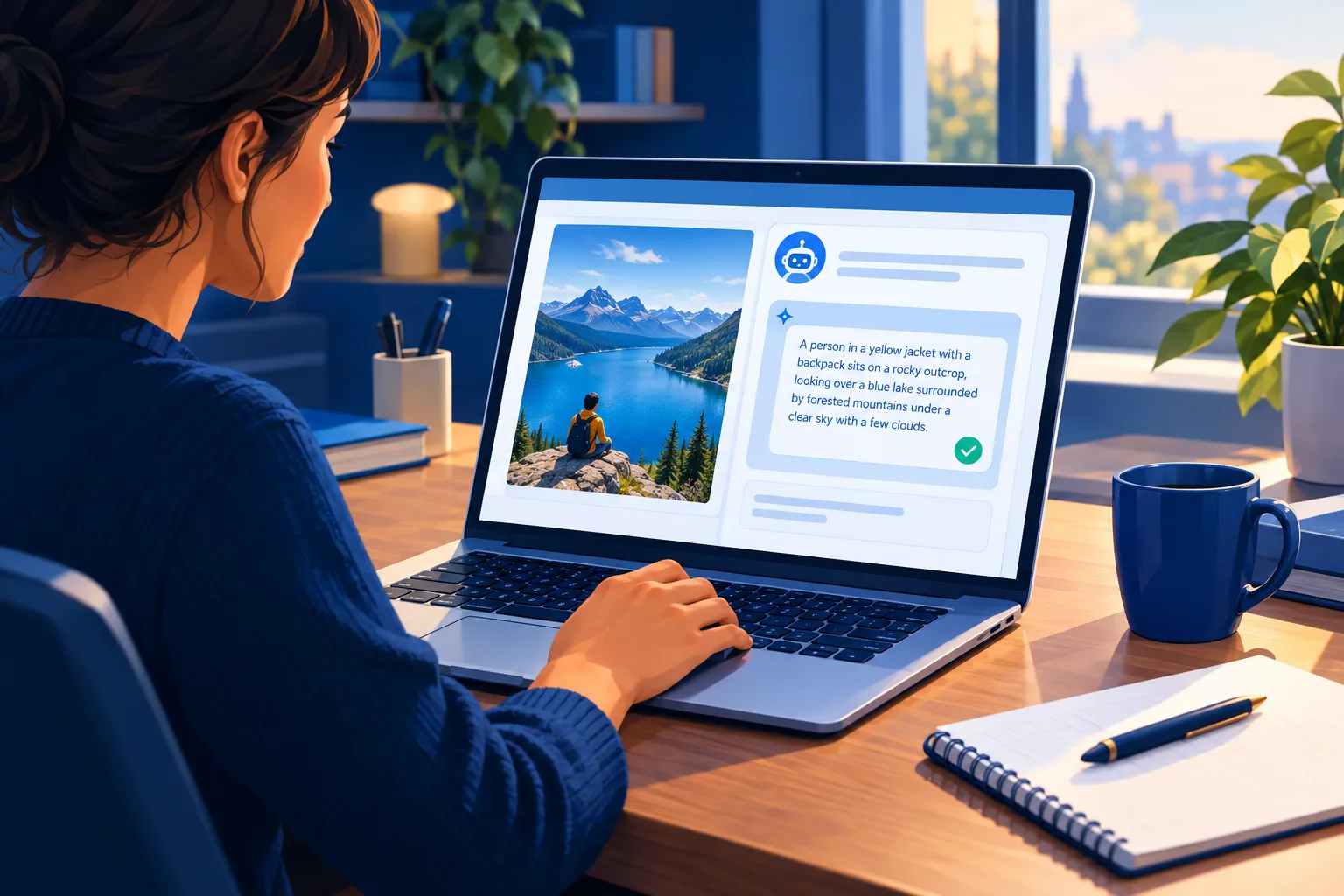
An AI assistant can suggest a concise first draft, offer a few alternatives, or help simplify a description. If the tool can inspect an image you provide, it may point out visible elements you missed. But a generated draft is a suggestion, not a verified account of the image.
A system may misread small text, confuse objects, miss a subtle but important detail, or describe something that is not actually visible. It may also focus on colours and objects when the reader needs to know the image's purpose. Do not let a confident-sounding sentence turn a guess into a fact.
The same image can need different alt text depending on its role: a chart may need its takeaway explained nearby, while a decorative background may need no description. Tell AI that context, then verify its suggestion.
A simple workflow for writing alt text with AI
Use this process for a single image before applying it to a large batch:
- Decide the image's job. Write one sentence about what it contributes to this page. If it is decorative, check how your site marks decorative images.
- Check what the AI can see. Some tools accept an image; others only respond to text. Do not assume the assistant has viewed a file unless you actually supplied it through the tool's image feature.
- Give context. Explain the page topic, the image's purpose and the intended reader. Tell the assistant not to infer identities, emotions, locations or details that are not clearly visible.
- Ask for a draft, not a verdict. Request one concise option and, if useful, a second option that emphasises the image's function.
- Compare it with the original. Look at the image yourself. Remove anything invented, uncertain, irrelevant or already stated beside it.
- Check the result in place. Read the page with the description in context. Make sure it adds useful information rather than repeating a heading or caption.
There is no single word count that makes every alt description good. Be as brief as you can while preserving the image's relevant information or action. Avoid padding it with phrases such as “picture of” when those words do not help the reader. For a complex chart or diagram, provide a fuller explanation in the page text as well, instead of trying to squeeze every point into one short description.
A prompt you can copy and adapt
Use an image-capable AI tool only if you are comfortable sharing the image with that service. If the image contains private, personal or confidential information, do not upload it unless your organisation permits that use. You can describe the image in general terms instead.
Help me draft alt text for an image on a page about [page topic]. The image's purpose is [what it helps the reader understand or do]. If you can inspect the image, describe only details that are clearly visible. Do not guess names, identities, emotions, locations, causes or unreadable text. Do not repeat information already stated in this nearby text: [relevant text]. Suggest one concise draft, then list any detail you are unsure about. If the image is decorative, tell me that a written description may not be needed. I will verify the final wording myself.
Review alt text before it goes live
Read the draft while looking at the image, then ask whether it would help someone understand the same relevant point. Use this quick review:
- Accurate: Is every described detail visible and correct?
- Relevant: Does the description explain why the image matters here?
- Context-aware: Does it add something beyond the nearby heading or caption?
- Respectful: Does it avoid assumptions about a person's identity, background or feelings?
- Clear: Can a reader understand it without specialist terms?
- Appropriate: Is a written description needed, or is the image decorative or redundant?
For graphs and diagrams, make the key data or relationship available in text too. For a link or button, describe its destination or action. If the meaning is unclear, ask the person who created or selected the image rather than relying on an AI guess.
Follow your organisation's privacy rules before sharing images with an AI service. Do not upload identifiable or confidential images without permission; when in doubt, describe the relevant visual details in text or write the alt text yourself.
Try this now
Choose one non-sensitive image you already have permission to use. Write down its purpose on the page, and draft a description yourself in one sentence. Then use the prompt above to request an AI draft. Compare the two against the image and the surrounding text. Keep only details you can confirm, and note one assumption the AI avoided or made. This small comparison helps you practise judgement, not just prompt-writing.
If you create visual content with AI, you can also explore DIT's AI Filmmaking workshop, a live Zoom workshop priced at ₹99 plus GST. Whatever tool you use, make the person reading the page, not the AI output, your final check.
Frequently asked questions
Can AI write alt text automatically?
AI can draft descriptions for some images, but the result still needs a human review for accuracy, purpose and context. Some images are decorative and may not need written alt text at all.
Should alt text describe every visible detail?
No. Focus on the information or function the image adds in its location, and avoid repeating nearby text. For a complex chart or diagram, explain important details in the main page text too.
Is “image of” a bad way to start alt text?
Not always, but it can be unnecessary when the surrounding context already makes it clear that the item is an image. Choose wording that communicates the image's useful information or action without adding filler.
Want to practise using AI for everyday tasks and learn how to check its answers? Join DIT's free AI 101 class, live on Zoom with no coding needed. It covers ChatGPT, Claude and Gemini, a reusable prompt framework and practical answer-checking.