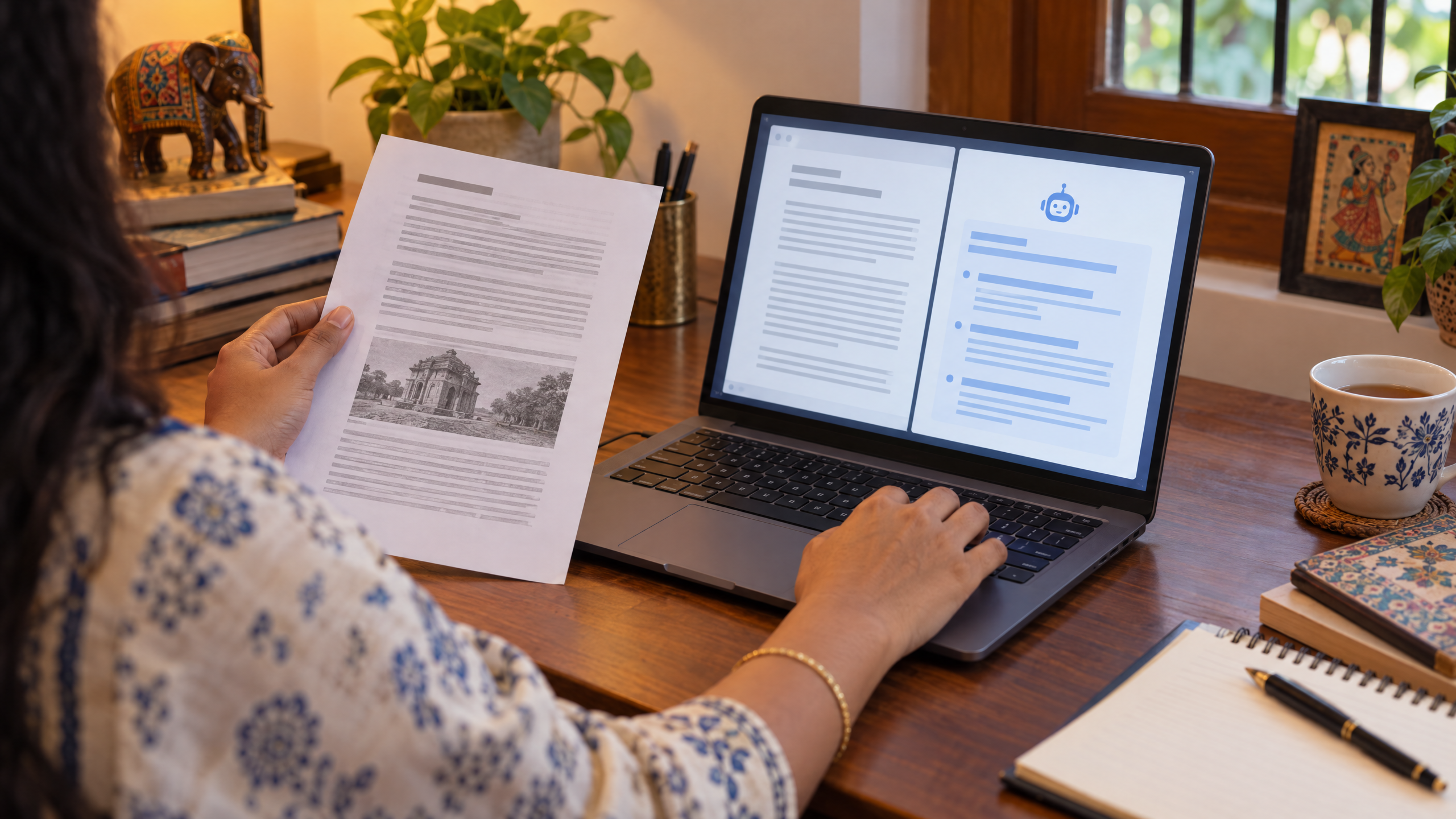
How to create a presentation with AI: a clear plan
Use AI to shape a clear presentation, build an outline, check facts, plan visuals and prepare speaker notes without letting the tool invent claims.
DIT Team 7 min read

To create a presentation with AI, start by defining the audience, purpose and one main takeaway, then ask the tool to help shape an outline. Check every factual claim, choose visuals that support the message and edit the final slides so they sound like you.
If you are new to AI, join the free AI 101 class. It covers ChatGPT, Claude and Gemini for real tasks, teaches a reusable prompt framework and shows where AI answers need checking, with no coding needed.
Start with the audience and purpose
Before asking AI to draft anything, decide who will hear the presentation and what they should understand or do afterwards. A short class explanation, a project update and a proposal for a client need different details and levels of formality. If the purpose is unclear, the tool may produce a generic collection of points that does not help the audience.
Write one sentence that states the main takeaway. Then note what the audience already knows, how much time you have and what action you want them to take. These choices will guide the outline, the examples and the amount of detail.
Give the tool a clear brief
An AI assistant can help brainstorm an outline, reorganise notes or suggest ways to explain a topic. It does not know your facts, audience or priorities unless you provide them, and it can add unsupported details to make a draft feel complete. Use only material you are allowed to share, and remove private or confidential information from your prompt.
A useful presentation brief includes:
- Audience: who will listen and what they know already.
- Purpose: what the presentation should achieve.
- Main takeaway: the one idea you want people to remember.
- Length: the time available or approximate number of slides.
- Source material: facts, examples or notes you have checked and can use.
- Limits: what the tool must not invent, assume or include.
If you do not have a verified figure or example, leave it out or mark it as something to check. Do not let the assistant fill the gap with a plausible-sounding number, quote or case study.
How to create a presentation with AI step by step
1. Ask for an outline before slide text
Give the tool your brief and ask for a sequence of sections or slide titles. A clear flow often introduces the question, explains the key ideas, supports them with evidence or examples and ends with a conclusion or next step. Review the order before asking for more detail.
2. Check the story and remove repetition
Read the outline as if you were hearing it for the first time. Does each section add something new? Does the presentation answer the audience's likely questions? Remove slides that repeat the same idea or do not support the main takeaway.
3. Add only checked facts and examples
Provide the source material you want included, such as your own notes or a public document you are allowed to use. Ask the assistant to label which points came from the material and to flag any claim that needs a source. Then verify names, dates, figures and quotations against the originals before they go on a slide.
4. Keep slide text brief
Ask for short slide titles and a few concise points, not paragraphs to read aloud. If an idea needs more explanation, use speaker notes or a spoken example rather than shrinking the text until it is difficult to read. You decide how much detail works for the actual audience and format.
5. Plan visuals that explain the idea
Ask for visual suggestions, such as a simple diagram, a comparison or an example that makes a process easier to understand. Check that each visual supports the point rather than decorating the slide. Do not use an image that could mislead the audience or reveal information you should not share.
6. Prepare and practise speaker notes
Ask for a short explanation for each slide using only your checked points. Treat the notes as rehearsal material, not a script you must follow word for word. Practise explaining the ideas in your own language and adjust any phrase that feels unnatural.
Try this now: ask for a first outline
Copy this prompt and replace the brackets with your information:
Help me plan a [length or number of slides] presentation for [audience]. Its purpose is [purpose], and the one takeaway should be [main idea]. The audience already knows [context]. Use only these checked facts or notes: [paste material you are allowed to share]. Suggest a clear outline with a title and purpose for each slide, plus one visual idea where useful. Do not invent statistics, sources, quotes or examples. Mark anything that needs checking. Do not write full slide text yet.
Review the outline before asking for slide copy. If the order does not make sense, say what should move and why. If a point is missing, add it from a source you trust rather than asking the AI to guess.
Check accuracy, privacy and accessibility
Before you present, compare every important claim with its source. Check figures, spelling of names, dates, units and any conditions that limit a statement. If you cite a source, make sure it exists and actually supports the point. A confident slide design does not make a claim more reliable.
Do not paste confidential client material, personal data or internal documents into an AI service unless you have permission and have checked its current privacy settings. When possible, use a short, non-sensitive summary or an anonymised example. Keep the original notes so you can verify the presentation later.
Also make the slides comfortable to follow. Use clear headings, readable text and a sensible amount of information on each slide. Explain abbreviations and avoid relying only on colour to distinguish important points. If the audience needs a handout, prepare one from the final checked version.
Common presentation mistakes to avoid
- Starting with slides instead of a purpose: decide what the audience needs to learn first.
- Keeping every AI suggestion: remove claims or examples you cannot verify.
- Using long paragraphs on slides: move extra detail into speaker notes or what you say aloud.
- Adding visuals without a reason: choose images or diagrams that clarify the point.
- Reading a script exactly: practise until you can explain the ideas naturally.
- Sharing private information: check permissions and remove details that are not needed.
For a reusable structure for giving an assistant clear instructions, read how to write AI prompts. If you would like guided practice using Claude for everyday tasks, DIT's Master Claude workshop costs ₹99 + GST and runs live on Zoom on Mondays from 7 to 10 pm IST.
Frequently asked questions
Can AI make a presentation for me?
An AI assistant can help with planning and drafting, but you need to decide what to include and verify the content. Review the final slides, visuals and speaker notes before presenting them.
How many slides should my presentation have?
Choose a length that fits your time and purpose rather than following a fixed number. A short outline helps you see whether each slide contributes to the main takeaway.
Should I use AI-generated statistics or examples?
Do not present a figure, quote or case study unless you have checked it against a reliable source. If you cannot verify it, remove it or clearly mark it for checking before the presentation.
Keep learning with a free class
Join the free AI 101 class to practise clear prompts with ChatGPT, Claude and Gemini, with no coding needed. Bring a presentation task and learn how to refine an outline and check its facts before you use it.