How to summarise documents with AI safely
Learn how to summarise documents with AI while preserving key points, checking claims and protecting confidential or personal information.
DIT Team 6 min read

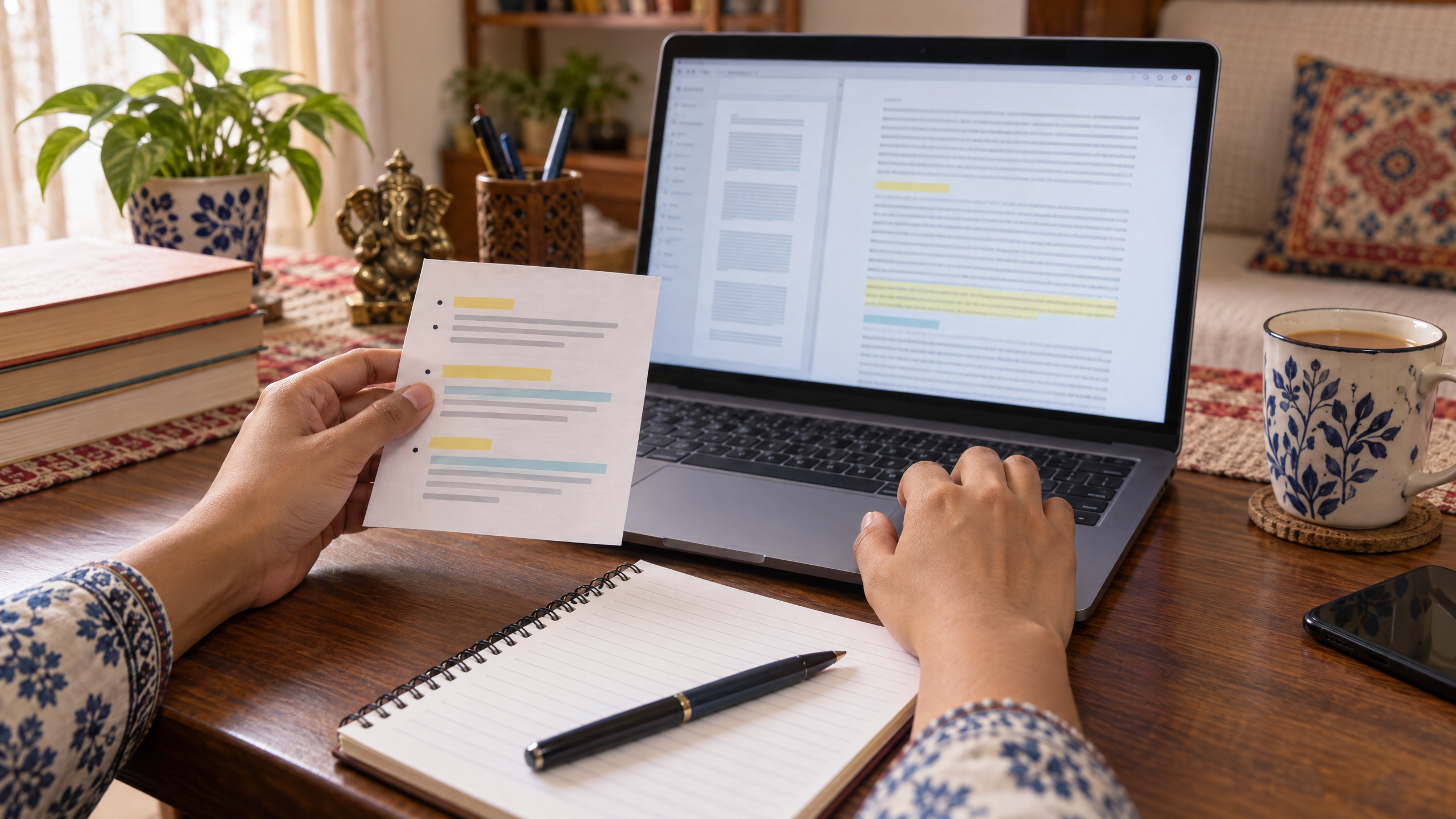
To summarise documents with AI, share only material you are allowed to use, tell the assistant what you need and ask it to separate source facts from uncertain points. Always compare the summary with the original before relying on or sharing it.
If you are new to AI, join the free AI 101 class. It covers ChatGPT, Claude and Gemini for real tasks, teaches a reusable prompt framework and shows where AI answers need checking, with no coding needed.
What an AI document summary can do
An AI assistant can help turn a long piece of text into a shorter overview, a list of key points or questions to explore. It may also help you find a detail in material you provide or rewrite technical language in simpler words. The quality depends on the source material, the instructions and the tool, so treat the output as a reading aid rather than a replacement for the document.
A summary can leave out qualifications, mix up details or state an uncertain point too confidently. It may also miss a table, footnote, image or a detail in a scanned page. When a point matters, locate it in the original and confirm the wording yourself.
Check whether you can share the document
Before uploading or pasting any material, consider who owns it and whether you have permission to share it with the tool. Workplace rules may restrict confidential plans, client information, internal reports or personal data. If you are unsure, do not submit the document; ask the appropriate person or use a non-sensitive excerpt instead.
Never include passwords, bank details, personal ID numbers or private customer records. Check the AI service's current privacy settings and terms before using it with work or study material. If a brief summary of the document is enough, provide that instead of uploading the full file.
A safer first test uses public or non-confidential text that you are allowed to share. That lets you learn how the assistant handles a summary without exposing private material.
How to summarise documents with AI step by step
1. Decide what the summary is for
A summary for a quick overview may need only the main subject and key conclusions. A study summary might need definitions and questions for revision, while a project update may need decisions, tasks and open issues. Tell the assistant the purpose so it can focus on the details that matter.
2. Specify the format
Ask for a short paragraph, a bullet list, a table or a set of questions. Set a reasonable length and say whether you want key terms, dates or action items preserved. If you need an exact quote or figure, ask the assistant to identify where it appears, then verify it in the source.
3. Tell it to stay within the source
Ask the tool to use only the text you provide, not to fill gaps with outside assumptions and to flag anything that is unclear or missing. This does not guarantee a perfect answer, but it makes unsupported additions easier to spot.
4. Check important points
Compare names, numbers, dates, instructions and conclusions with the original document. Open the relevant page or section rather than relying only on the summary. If the source contains a condition or exception, check that the summary has not dropped it.
5. Save your own notes
Keep the original document and the summary separate. Mark which parts are AI-generated and add your own corrections. If someone else will use the summary, tell them what it is based on and whether you have verified it.
Try this now: summarise a short, safe excerpt
Choose a public or non-sensitive paragraph and copy this prompt. Replace the brackets with your purpose and preferred format:
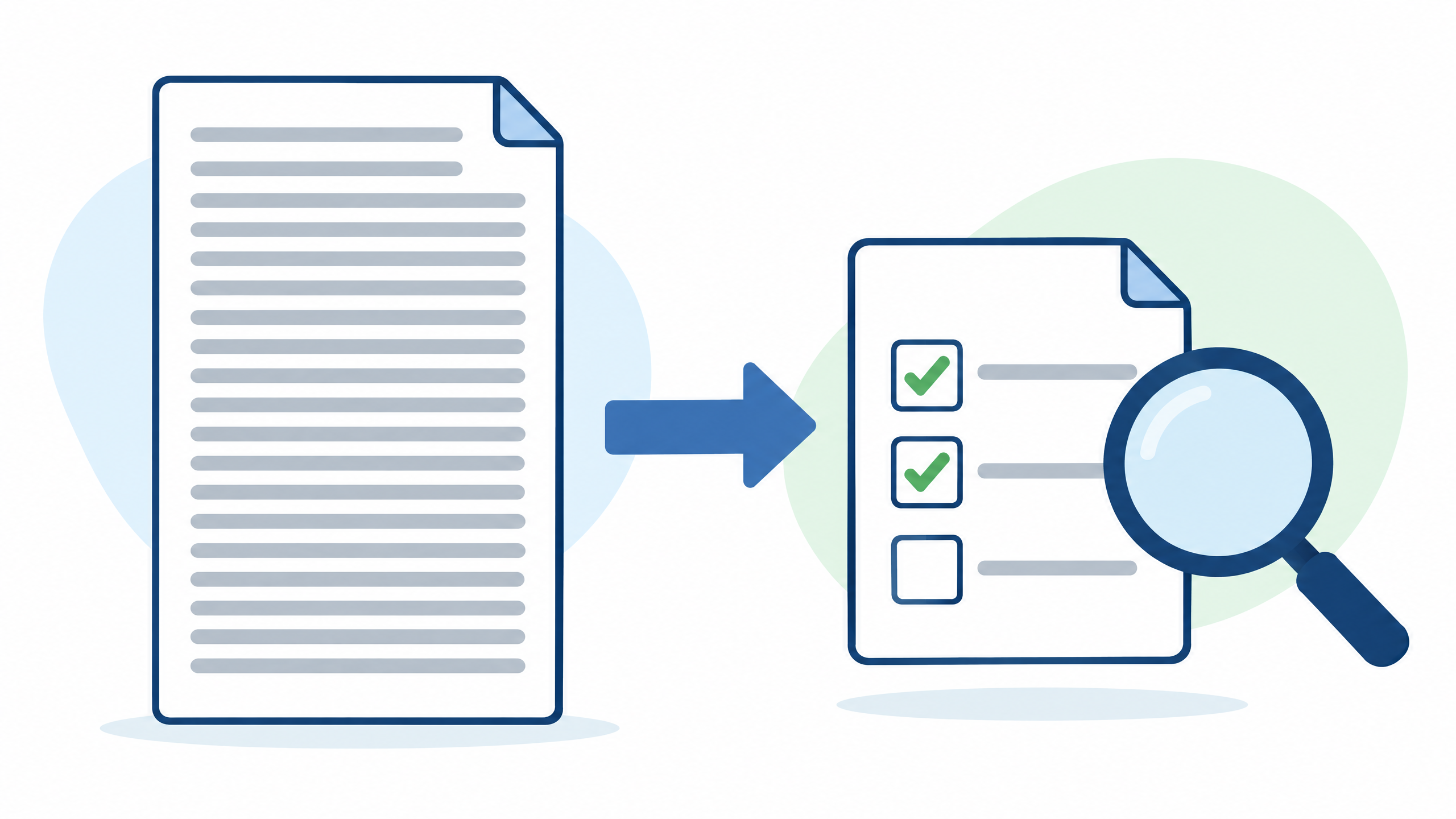
Summarise the text below for [purpose and audience]. Use only the text I provide. Keep the summary to [length] and format it as [a paragraph, bullets or a table]. Preserve names, dates, numbers and conditions exactly as written. Do not add outside facts or infer missing information. If a point is unclear, list it under “Check this in the original.” After the summary, give me a short checklist of details to verify. Text: [paste a short excerpt you are allowed to use]
Read the summary while looking at the original. Check whether it preserves the main point, any exception and the meaning of key terms. If you need a different result, refine one instruction at a time, such as asking for a shorter version or a separate list of action items.
Use summaries carefully for study and work
For study, a summary can help you review a chapter or prepare questions, but do not assume that it includes every detail you need for an exam or assignment. Use it alongside your course material, and check definitions, examples and dates against the source. You can ask for practice questions based on a section, then answer them yourself before checking your notes.
At work, a summary may help organise a permitted document into decisions, tasks and unresolved questions. Do not treat a generated action item as an approved decision. Confirm who owns the task, any deadline and the context with the original record or the relevant colleague.
For legal, financial, medical, safety or other high-impact documents, do not rely on an AI summary to make a decision. Read the relevant original sections and seek an appropriate qualified person when needed. A short output is convenient, but it can hide precisely the detail that matters.
Common mistakes to avoid
- Sharing too much: use only material you are allowed to share and remove unnecessary personal details.
- Asking for a vague summary: specify the audience, purpose, length and format.
- Trusting invented details: compare every important name, figure and claim with the original.
- Missing exceptions: look for conditions, footnotes and qualifications that change the meaning.
- Treating a summary as the source: keep the original available and cite or point readers to it when you share notes.
A useful summary is not just shorter. It should help someone understand the source without changing what the source says. If you cannot verify a point, mark it as uncertain rather than presenting it as fact.
For a reusable framework for clear instructions, read how to write AI prompts. If you want guided practice using Claude for everyday tasks, the Master Claude workshop costs ₹99 + GST and runs live on Zoom on Mondays from 7 to 10 pm IST.
Frequently asked questions
Can AI summarise a PDF?
Some AI tools accept documents or file uploads, but available formats and limits depend on the service and may change. Check the current tool details, and verify the output against the actual pages, especially tables, footnotes and scanned content.
How do I know if an AI summary is accurate?
Compare key statements with the source, paying special attention to names, dates, numbers, conditions and conclusions. Treat anything you cannot locate in the document as unverified.
Is it safe to upload work documents to an AI tool?
That depends on your organisation's rules and the service's current privacy settings and terms. Do not upload confidential or personal material unless you have permission and understand how the service handles it.
Keep learning with a free class
Join the free AI 101 class to practise clear prompts with ChatGPT, Claude and Gemini, with no coding needed. Bring a safe text excerpt and learn how to refine a summary and check it against the original.