How to write professional emails with AI
Learn how to draft clearer work emails with AI, choose the right tone, protect private details and check every fact before you press send.
DIT Team 6 min read

AI can help you write professional emails by organising your main point, adjusting the tone and shortening a message. Give it the relevant context and clear limits, then check every detail and rewrite the result so it sounds like you.
If you are new to AI, join the free AI 101 class. It covers ChatGPT, Claude and Gemini for real tasks, teaches a reusable prompt framework and shows where AI answers need checking, with no coding needed.
What AI can and cannot do with an email
An AI assistant can help turn rough notes into a draft, suggest a clearer subject line or make a long message easier to scan. It can also suggest different tones, such as warm, direct or formal. But it does not know your workplace expectations unless you explain them, and it may change the meaning while trying to improve the wording.
Treat the draft as a starting point. You decide what to say, whether the tone fits the relationship and whether the message should be sent at all. The assistant should not make commitments, promises or decisions on your behalf.
Decide what the email needs to do
Before you prompt the tool, write down the purpose in one sentence. Is the email asking for information, sharing an update, requesting a meeting or following up on an earlier conversation? A clear purpose helps keep the draft focused.
Gather only the details needed for that message. For example, a meeting request may need a reason, a few possible times and the action you want the reader to take. Do not paste private customer details, confidential work documents, passwords or personal information into an AI tool unless you have permission and have checked the tool's privacy settings.
A useful checklist before drafting is:
- Reader: who will receive the email, and what do they already know?
- Purpose: what is the main point or request?
- Facts: which names, dates, figures or decisions are confirmed?
- Tone: should the note be formal, friendly, brief or firm?
- Next step: what should the reader do, and by when if a deadline is confirmed?
If a date or deadline is not confirmed, do not let the assistant invent one. Leave a clear placeholder for yourself to fill after checking.
How to write professional emails with AI
1. Ask for a draft, not an action
Tell the assistant to prepare text for you to review. Do not ask it to send the email, contact the recipient or make a promise. If a tool can take actions, keep those permissions off for this drafting task.
2. Provide enough context, but not everything
Share the reader, purpose and confirmed details that matter. Replace names or sensitive information with labels such as [client] or [project] when the exact identity is not necessary. The assistant can work with a summary instead of a full private thread.
3. Specify the length and tone
Say whether you want a short email or a more detailed explanation. Describe tone in plain words, such as polite and direct, rather than asking it to sound "better." Ask for a subject line separately if that would help.
4. Check the draft against your facts
Compare every name, date, figure, attachment and promise with the source you trust. AI may add a plausible detail that you did not provide. Delete it or replace it with an accurate detail before sending.
5. Make the final wording yours
Read the message aloud. Remove phrases you would not naturally use and make sure the request is clear to the recipient. Confirm that the subject line matches the body and that the message does not expose information the reader does not need.
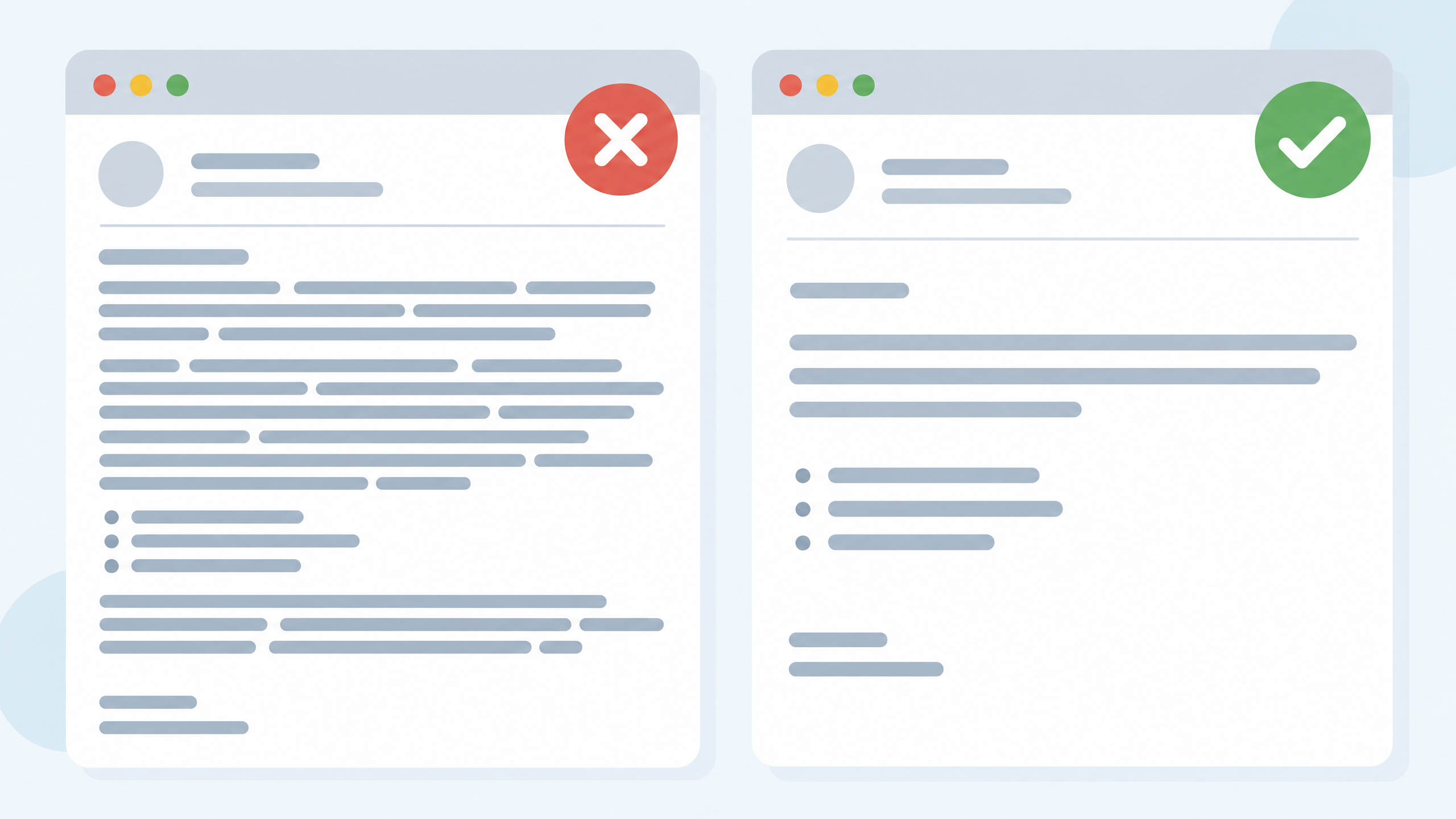
Try this now: draft a simple work email
Copy this prompt and replace the square brackets. Use placeholders instead of private details when possible:
Draft a professional email to [reader or role] for this purpose: [what I need to communicate]. Use only these confirmed facts: [facts]. The reader already knows: [context]. Keep it [short or detailed] and use a [polite, friendly, direct or formal] tone. Ask for this next step: [request]. Do not invent names, dates, figures, promises or reasons. Do not send the email. Give me a subject line and a draft, then list any details I should verify.
Read the result and answer the verification questions yourself. If the draft is too formal, ask for a warmer version; if it is too long, ask for a shorter version while keeping the key facts. Change one thing at a time so you can tell whether the edit helped.
Examples of low-risk email tasks
You could ask AI to organise your own non-confidential notes into a brief project update, then check that the status and next steps are correct. You might also ask it to turn a rough meeting request into a polite note, or make a follow-up message clearer without adding a new deadline.
For an apology or a sensitive disagreement, use extra care. A polished draft can sound impersonal or miss what the other person needs to hear. Write the important facts yourself, consider the relationship and review the wording before you send anything.
Do not use AI to create a false excuse, exaggerate an achievement or imply that someone agreed to something when they did not. A clear and honest email is more useful than a confident-sounding one that changes the facts.
Protect privacy and keep control
Work messages can contain personal, customer or business information. Check your organisation's rules and the AI tool's current privacy settings before using it with work material. When in doubt, summarise the situation in general terms or draft without AI.
Never include passwords, bank details, personal ID numbers or confidential customer information in a prompt. Remove unnecessary names and identifiers, and do not upload an entire email chain if a short summary is enough. Keep the final decision and sending step with a person.
For a reusable structure for writing prompts, read how to write AI prompts. The same basics apply to an email: say what you need, give relevant context, set limits and check the answer.
Frequently asked questions
Can AI write an email for me?
It can draft text from instructions and context you provide, but you should review and edit it before sending. Check facts, tone and any commitments, and make sure the message reflects what you mean.
Should I paste a full email thread into an AI tool?
Only if you are allowed to share it and have checked the tool's privacy settings. Often a short, non-sensitive summary is enough for the assistant to help with a draft.
How do I stop an AI email from sounding generic?
Tell it who the reader is, what outcome you want and what tone feels natural to you. Then remove phrases you would not use and add any context the recipient needs.
Keep learning with a free class
Join the free AI 101 class to practise clear prompts with ChatGPT, Claude and Gemini, with no coding needed. Bring a real writing task and learn how to refine an AI draft and check it before you use it.